








• Text size:

    S M L
  • Letter spacing:

You gain a dedicated partner committed to helping you reach your full potential and achieve new heights

Know More

msme-trade

Zero Forex Markup Current Account

Maximise your savings and boost profitability with our Zero Forex Markup current accounts

Know More

bulk-payments

Make more than one online payment in just a few clicks with IDFC FIRST Bank Bulk Payments

Know More
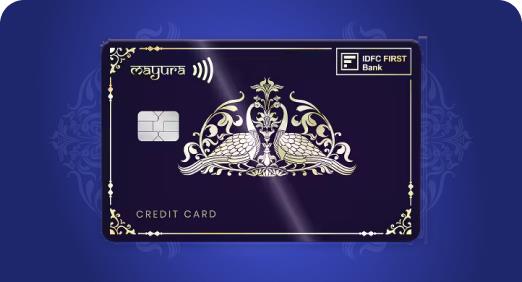
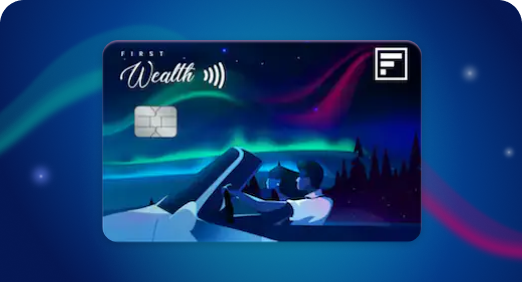
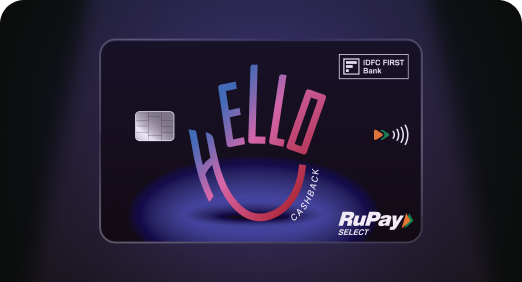
Hello Cashback Credit Card

Cashback for everyone, for every spend that matters

Know More
Image

WhatsApp banking

Right Arrow

Say ‘Hi 👋’ on WhatsApp at 9555 555 555 & we’ll get back to you instantly

Image

Track Requests

Right Arrow

View & track all your past and active service requests.

Image

Raise a Request

Right Arrow

Facing issues? Let us know how we can help you

Locate Us

Locate Us

Right Arrow

Locate your nearest IDFC FIRST Bank branches and ATMs

Add a compliment

Add a compliment

Right Arrow

Our customers are talking, and we think you’ll like what they’re saying.

Customer care

Customer care

Right Arrow

We will be happy to help you 24x7.

Image

Help Center

Right Arrow

Support topics, FAQs and more

Image

Download our app

Get instant help for all your queries in one place

Explore Personal
Explore Credit Cards
Image

WhatsApp banking

Right Arrow

Say ‘Hi 👋’ on WhatsApp at 9555 555 555 & we’ll get back to you instantly

Image

Track Requests

Right Arrow

View & track all your past and active service requests.

Image

Raise a Request

Right Arrow

Facing issues? Let us know how we can help you

Locate Us

Locate Us

Right Arrow

Locate your nearest IDFC FIRST Bank branches and ATMs

Add a compliment

Add a compliment

Right Arrow

Our customers are talking, and we think you’ll like what they’re saying.

Customer care

Customer care

Right Arrow

We will be happy to help you 24x7.

Image

Help Center

Right Arrow

Support topics, FAQs and more

Image

Download our app

Get instant help for all your queries in one place

Download now!

User Guide

How to LOG ON 

  • From the idle screen, press the 2nd Option.
  • Select the LOG ON option, press the Green Key.
  • You will see the message “Connecting Primary or Secondary ....Receiving….Log on Successful.

How to initiate a Contactless SALE Transaction

  • From the idle screen select the SALE option.
  • Enter the AMOUNT
  • The terminal will prompt the Contactless symbol.
  • Tap the Contactless Card on the display
  • Enter the PIN number.
  • The transaction will be approved or declined.
  • The terminal prints a charge-slip for successful transactions.
  • Press the Green key for the customer copy of the charge-slip.

How to initiate a Manual Transaction

  • From the idle screen select the SALE option.
  • Enter the AMOUNT & press the Green Key
  • The terminal will prompt the Contactless symbol.
  • Press the F key & enter the PAN details and the expiry date.
  • Press the Green key, the terminal prints the receipt.

How to initiate a VOID Transaction

  • From the idle screen, press scroll down.
  • Select the 4th Option “VOID”.
  • Enter the invoice number ##
  • Press the Green key
  • The terminal prints the Merchant & Customer copies of the receipt.

How to initiate a REFUND

  • From the idle screen, press the Scroll Down Arrow Key
  • Select the 7th option REFUND
  • Tap Contactless Card on Display or Insert the Card.
  • Enter PW : 0000 and Press the Green Key
  • Enter the AMOUNT.
  • Tap Contactless Card on Display or Insert the Card.
  • The terminal will print a merchant copy of the receipt.
  • Press the Green Enter key for the customer’s copy.

How to PRE - AUTH a Transaction

  • Press the Scroll Down Arrow Key.
  • Select the 5th Option PRE-AUTH.
  • Enter the AMOUNT.
  • The terminal will prompt the Contactless symbol.
  • Tap Domestic or DCC Contactless Card on Display or Insert the Card.
  • Enter the PIN No.
  • The terminal will prompt the customer for DCC acceptance.
  • DCC conversion data will appear on the screen
  • The customer can accept this by pressing the Green button below Yes “1” or Reject No “2”.

PRE - AUTH Completion

  • Press the Scroll Down Arrow Key.
  • Select the 5th Option PRE-AUTH.
  • Enter the Amount.
  • Enter the Invoice Number ## and Acct .( last 4 Digit Card no.) & Approval code.
  • The customer can accept this by pressing the Green button below Yes “1” or Reject No “2”.
    • The terminal prints the merchant’s copy
    • Press the Green key for the customer’s copy.

Note: In case of decline transaction, check the transaction details and try again.

TIP Transaction

  • Press the Scroll Down Arrow Key
  • Select the 9th Option TIP ADJUST.
  • Enter the Invoice Number ## and Acct. ( last 4 Digit Card no.)
  • Press the Green key.
  • The terminal will print the merchant’s copy.
  • Press the Green Key for the customer’s copy.

How to Reprint an Earlier Transaction

  • Press the Scroll Down Arrow Key
  • Select the 8th Option:
    1. TOTALS
    2. DETAIL REPORT
    3. REPRINT
    4. LAST SETTLE
    5. LAST TRANSACT