









Login to Internet banking
A brand-new experience - smarter, faster, and secured




You gain a dedicated partner committed to helping you reach your full potential and achieve new heights
Know More

BRAVO (Auto Sweep)
Convert the idle funds in your current account into a fixed deposit with the BRAVO feature.
Know More
Zero Forex Markup Current Account
Maximise your savings and boost profitability with our Zero Forex Markup current accounts
Know More


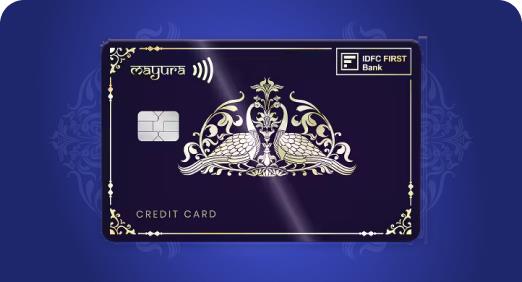

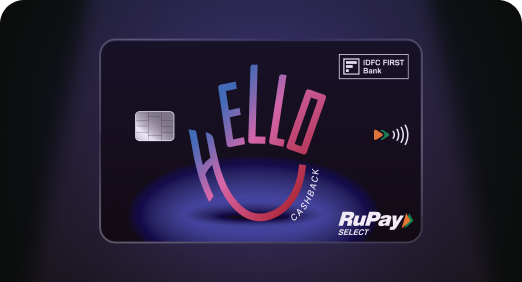

Enjoy Zero Forex on all IDFC FIRST Bank Credit Cards
Save more on all international spends
Know More
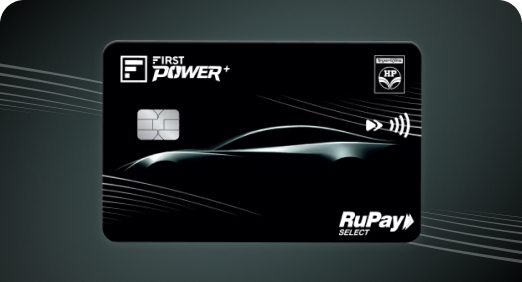
A Card that Powers your Savings & Lifestyle
IDFC FIRST Bank HPCL Credit Card







Most Searched
Earn up to 7% interest on your Savings Account
Open Account Now
Download our app
Get instant help for all your queries in one place
Unlock features, exclusively available
only on the IDFC FIRST Bank app
Trusted by 1.2+ million Indians.

4.8

4.8

Tools & Calculators
Privilege Program



Tools & Calculators

Unlock features, exclusively available
only on the IDFC FIRST Bank app
User Guide for (POGO) Device
Requirements for powering the POGO> device
1. Power the POGO> Device. Make sure your smartphone, POGO> device & welcome kit are accessible.
Charging POGO> device
Bluetooth Pairing
Downloading of POGO> mobile application
Application Access & creating a User Name & PIN
Activation of the POGO> Device
How To Accept Chip & Mag Stripe Transactions
| Activation steps | Chip & Pin Cards | Chip & Sign Cards | Mag Stripe & Pin Cards | Mag Stipe & Sign Cards | |
| Switch on the POGO> device and ensure your device’s Bluetooth is switched on | Yes | Yes | Yes | Yes | |
| Tap the ‘Payment’ icon on the POGO> Home Page | Yes | Yes | Yes | Yes | |
| Enter the amount in the ‘Amount’ field | Yes | Yes | Yes | Yes | |
| Enter customer’s mobile number and E-mail ID. Click on the ‘Tap to Activate’ icon. | Yes | Yes | Yes | Yes | |
| The POGO> device will display the message ‘Please INSERT/SWIPE’ | Yes | Yes | Yes | Yes | |
| SWIPE/DIP customer’s card Into the SWIPE/DIP slot | Yes | Yes | Yes | Yes | |
| Request the customer to validate amount on the POGO> device by pressing the GREEN button. | Yes | No | No | No | |
| Customers are requested to insert their PIN and then press the GREEN button. | Yes | No | No | No | |
| On successful SWIPE/DIP the POGO> device reads the card details | Yes | Yes | Yes | Yes | |
| Masked details now appear on the POGO> app-Name of card holder, card number (last 4 digits visible) | Yes | Yes | Yes | Yes | |
| Click on the ‘Sign’ Icon and request the customer to sign on the signature screen | No | Yes | Yes | Yes | |
| Click on the ‘Continue’ icon | No | Yes | Yes | Yes | |
| Please note – On the back of the payment screen, the signature captured is visible on the side of the sign field | No | Yes | Yes | Yes | |
| Tap on the ‘Make Payment’ icon | Yes | Yes | Yes | Yes | |
| Request customer to validate amount on the POGO> device by pressing the GREEN button | No | No | Yes | No | |
| Request customer to key in their PIN and then press the GREEN button | No | No | Yes | No | |
| A message to indicate the status of transaction appears. Also, a SMS and an E-mail are sent to the customer on successfully completing the transaction | Yes | Yes | Yes | Yes | |